Mac mini media center
I had long been planning to buy a Mac mini to hook up to my TV and stereo replacing the DVD player and adding media center functionality, and I finally did just that. Last night I connected the mini's DVI output to my plasma's HDMI input and the digital audio output to my AV receiver. The short version of the story is that it pretty much just worked but with a few unresolved issues and some minor hiccups along the way.
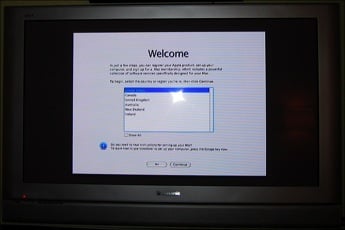
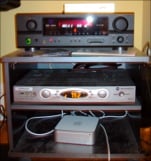 As you can see in this poor picture of the Mac mini in my stereo cabinet along with the HD cable/DVR box, the mini is quite small. The 5 year old DVD player it is replacing filled the entire bottom shelf area. I hooked it up to the tv, the stereo, power, and an extra keyboard and mouse and, with much excitement, flipped the whole setup on! The Mac automatically configured it's video output based on some information passed to it by the TV via the digital HDMI/DVI connection and I was greeted with the sight of a white apple logo on a grey background signaling the bootup process for Mac OS X. It continued to boot up into the initial setup. Here's the language selection screen. It was actually a bit anti-climactic since I've seen a screen like this when setting up several previous Macs. It was just like any other, other than being on my TV.
I went through the set up process and noticed the first issue when the familiar Mac desktop came up. The edges of the desktop were chopped off! About half of the menu bar at the top, half of the dock at the bottom, and some from each side was missing. Here you can see an example. I have Safari open to a baby name website looking for a name for the new addition to the network. We ended up choosing 'Lucy'.
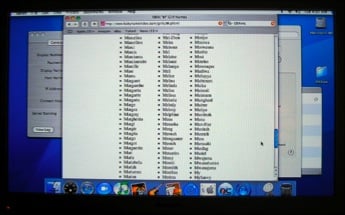
After some research I realized it's an issue common to pretty much all 'computer hooked to a TV' setups and it's somewhat surprising that it hasn't actually be resolved by these software developers by now. I guess it's complicated because every model of TV is a little different. It's called 'overscan'. I've tried several things, including the DisplayConfigX software, to potentially fix it but nothing has worked in my case. If you know how to get it working with my Panasonic 42" plasma let me know!
UPDATE: I figured out the overscan problem and posted the solution.
Here's a few notes for anyone thinking about one of these setups.
- Set up VNC first thing! It comes in very handy.
- Front Row is seemingly only launchable with the remote.
- To get playing DVDs to use the digital out and provide surround sound you have to set a sound output option in the DVD player preferences with no DVD in the drive.
- You have to launch iTunes once before you'll be able to play music in Front Row. Also authorize it for any iTunes Music Store music you may want to play.
- Also launch iPhoto before the photo part of Front Row will work.
- Install the DivX player to add support for AVI and DivX files to Front Row (via QuickTime).
- When I boot the Mac mini with no keyboard or mouse plugged in, it wants to pair itself with some over bluetooth. I don't know how to make it not do that so I just have a keyboard plugged in now and an extra bluetooth mouse paired.
- You can only access shared videos on other computers via the remote computer's iTunes library and iTunes will not accept AVI files. I don't know of a workaround.
- Front Row has crashed on me a couple of times, eating up all of one core in the process and essentially locking me out of it. A force quit works but that requires me to use VNC or the bluetooth mouse. Not ideal!
On the Windows side of things, recent video drivers from ATI and Nvidia let you adjust the overscan...
But you should be able to adjust overscan in the Panasonic's service menu. http://www.bruzzi.ws/plasma-faq/showthread.php?t=21
Different Panasonic plasmas have slightly different button combos for unlocking the service menu, so Google around if the link above doesn't work.
Just make sure you write down what the original settings were before you go changing stuff. Messing in the service menu can get your TV into an unusable state.
Hrm. I tried this and no luck. Those instructions don't work for my TV but I did get into the service menu (using other info on that site) but couldn't figure out what to change! It's very cryptic.
Have you tried calling the phone support for the TV? It's a bit 80's but it just might help. Maybe a visit to one of those Apple stores will help? There's gotta be another person out there with the same tv who's got this overscan issue under control.
I like the new site. It's cool to be able to post replies.
> Front Row is seemingly only launchable with the remote.
You should be able to do this by hitting Command-Esc. Works on my new iMac, at least. If you are lacking in a keyboard I'm sure there's some way you can automate that process.
Also, needing to launch iTunes, iPhoto, etc. doesn't match my experience. They are automatically launched in this machine when I use Front Row.
The overscan problem isn't one. You can choose to either turn on or off in the display system preferences.
If you toggle the overscan setting in the display system preferences it does indeed show the entire desktop on the screen but there's also black bars all the way around. In my case the black bars were a few inches wide!
Great info!
Do you know the info requested for the display when you first open DCX? You know, the first window with all the parameters and data for the Plasma TV???
Let me know!
Thanks!
Joel
Joel, check here:
http://www.idallas.com/blxx/toys/intel-mac-mini-panasonic-plasma-overscan-solution/
Thanks....
i was talking about this info:
http://www.3dexpress.de/#Installation
I need to fill that from my plasma and I don't have those parameters...
Thanks!
JP
I don't think you need to fill that stuff in, actually. I didn't... Just switch to the Resolutions tab, create a new one and stick in the values. After rebooting you should be able to select your new custom resolution and it should work.
did that but got a diagonal, hispeed scrolling image after rebooth and the only way to skp this is to booth connected to the VGA input, open DCX and delete the resolutions. This is with an intel mini btw...
Thanks!
JP
Here’s what I have in the ’Monitor’ tab for my Panasonic plasma. It would probably need to be different for other models and other brands of TV. If I customized these settings I did it using information I found in the product manual…
Refresh Rate: 45.00 - 61.00
Horizontal Frequency: 10.00 - 120.00
Pixel Frequency: 350.00
Native Resolutioon: 1024×768
Default Refresh Rate: 60.00
I then also have ’Disable system resolutions for this monitor’ checked.
Also, you might want to look into using VNC if you’re not already. If I hit an incorrect resolution when I was fiddling with different resolutions before I could log in over VNC to set it back to one that would display on the television without rebooting. It was very handy!
Thanks, I will try that...
regards,
joel
I'm in the same spot as byteCoder... Everyone says "just turn off the OverScan in the System Preferences - Display... " But its just not there. According to apple.com, this is part of OS-X and they make no mention about it being specific to certain macmini's or anything else. Please HELP!!! ... before I go nuts trying to find this magical option...
The enforced Bluetooth keyboard and mouse pairing can be disabled from the Bluetooth preferences. Just deselect "Open Bluetooth Setup Assistant at startup when no input device is present."
Unfortunately it does not appear possible to switch off Bluetooth without a USB keyboard and mouse attached, presumably to stop users locking themselves out of their systems.
I have the exact set-up as you, expect with a 2008 model version of the mac mini., however can't seem to get anything to show up on the TV. Tried with a mac mini initially, but then tried a powerbook G4 so that I could try switching resolutions. No luck though. When I click on Detect Displays, nothing comes up. I assume it must be the TV, as I have tried another dvi to hdmi cable, but seems odd that the hdmi port would just be broken, considering everything else works on the tv. Any suggestions?